Sign documents on your iPhone
Scan the page, draw your signature with your finger, place it on the line and send it back — without printing anything.

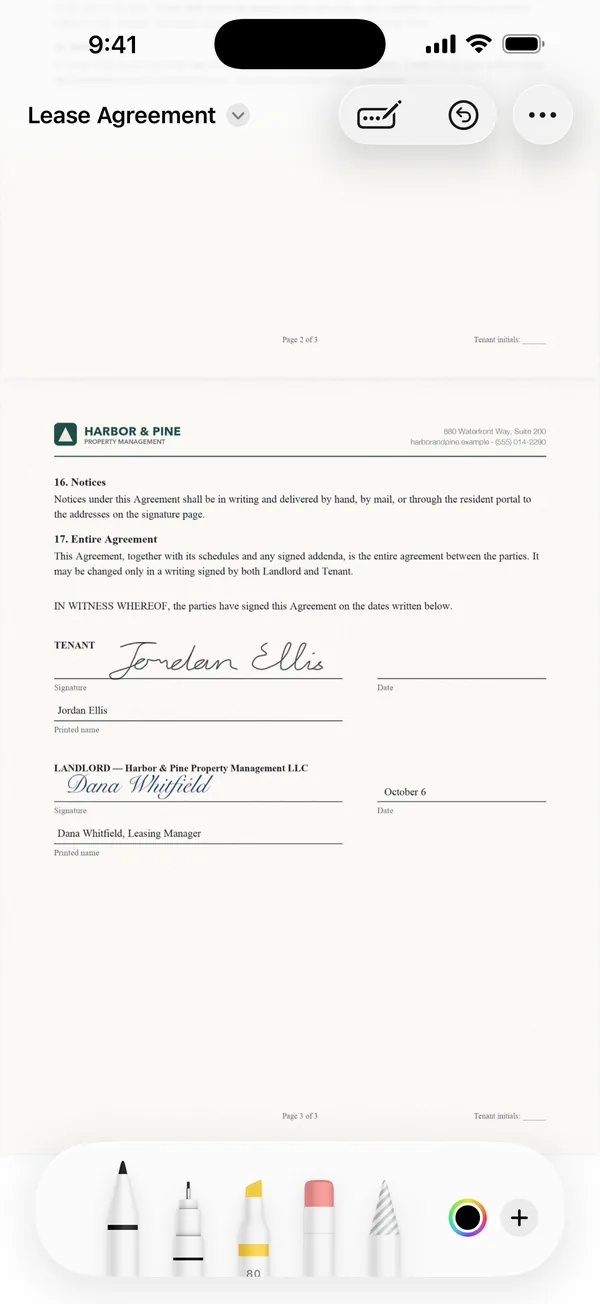
How to do it
- Scan the document, or open one you have already scanned.
- Tap Sign or mark up.
- Tap + and choose Add Signature. Draw it with your finger — turn your iPhone sideways for more room.
- Drag the signature onto the line, resize it, and tap Done. It becomes part of the page.
Your signature is saved for next time
Signing uses Apple's Markup, the same tools as in Files and Mail. Draw your signature once and iOS keeps it, so the next document takes two taps.
Markup also gives you a highlighter, pens, text boxes and shapes for filling in or annotating a page.
Signatures that stay put
When you finish, the signature is merged into the page image itself rather than left as a loose annotation. It looks the same in every app the PDF is opened in, and it cannot be dragged off by whoever receives it.
Questions
Can I undo a signature I placed by mistake?
Yes. While Markup is open, use the undo arrow, or tap the signature and choose Delete. Once you tap Done it becomes part of the page.
Is this a certified e-signature?
No. It places a drawn signature on the page, like signing a printout. Documents that require a certified digital signature service need one of those.
Is signing free?
Signing is part of Scan Page Pro. Scanning the document is free.
Get Scan Page
Scanning is free and your documents never leave your device. Scan Page Pro unlocks opening, exporting, signing and sharing what you capture.
More you can do
Scan to PDF
Scan paper documents to clean, searchable PDFs on your iPhone. Automatic edge detection, perspective correction and multi-page scanning, with nothing uploaded.
Scan to Word
Turn a paper document into an editable Word file on your iPhone. Scan it, and Scan Page exports the recognised text as a .docx — along with PDF, JPG and plain text.
Photos to PDF
Turn photos already in your library into a PDF, combine several documents into one, and reorder, rotate or clean up pages on your iPhone.