Turn photos into a PDF, and put pages in order
Already took a picture of the page? Turn photos from your library into a PDF — then merge documents, reorder pages, rotate them and clean them up.

How to do it
- Open Tools and tap Photo to PDF.
- Pick your photos in the order you want the pages — each one is numbered as you tap it.
- The document opens with its text recognised, like any scan.
- To combine documents, tap Select on Home, choose them and tap Merge. Pages follow the order the documents appear in your library.
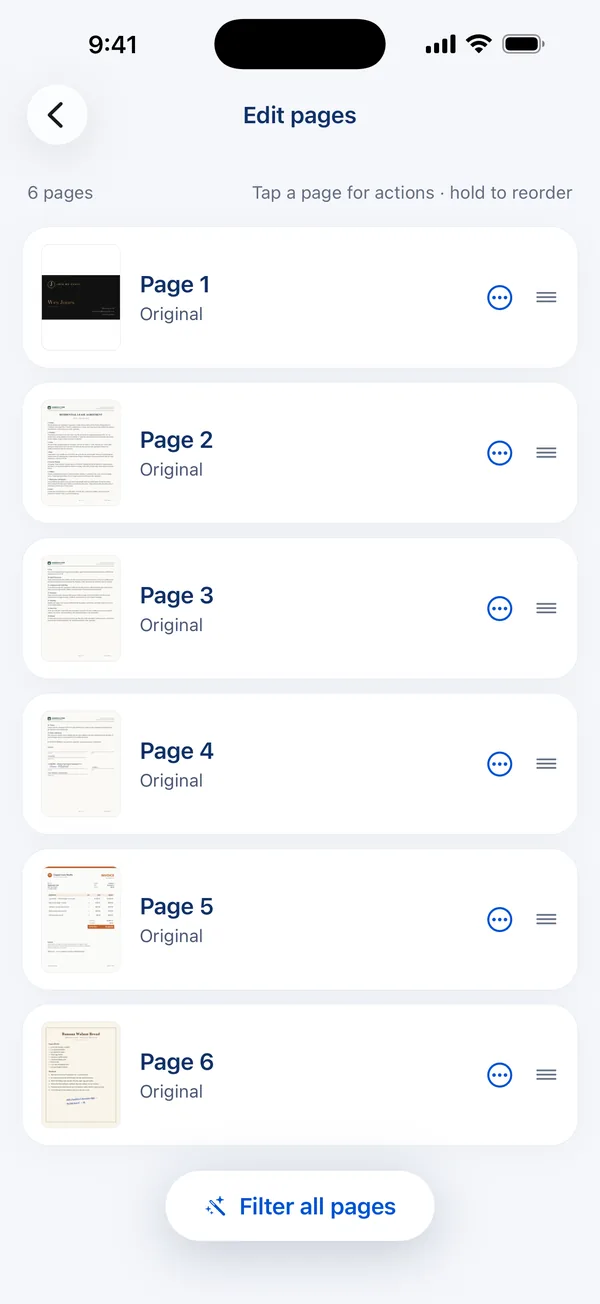
Edit pages
Hold a page to drag it into a new position. Tap one to rotate it, change its filter or delete it, or apply a filter to every page at once. The greyscale, black & white and enhance filters make a dim photo of a page legible, and Original puts it back.
Merging keeps the originals
Merging creates a new document from copies of the pages, so the originals are still there if you change your mind. Sort your library by name or date first to set the order, then reorder individual pages in Edit pages.
Questions
Does the app need access to all my photos?
Photos access is only requested when you use Photo to PDF, and the app reads only the photos you pick.
Can I combine a scan with a photo?
Yes. Make a document from the photo, then select it and the scan on Home and tap Merge.
Is this free?
Making documents from photos and merging them are free. Editing pages and exporting are part of Scan Page Pro.
Get Scan Page
Scanning is free and your documents never leave your device. Scan Page Pro unlocks opening, exporting, signing and sharing what you capture.
More you can do
Scan to PDF
Scan paper documents to clean, searchable PDFs on your iPhone. Automatic edge detection, perspective correction and multi-page scanning, with nothing uploaded.
Sign documents
Sign a contract or form on your iPhone: scan it, draw your signature with your finger, place it on the line and share the signed PDF.
Scan to Word
Turn a paper document into an editable Word file on your iPhone. Scan it, and Scan Page exports the recognised text as a .docx — along with PDF, JPG and plain text.