Scan documents to PDF on your iPhone
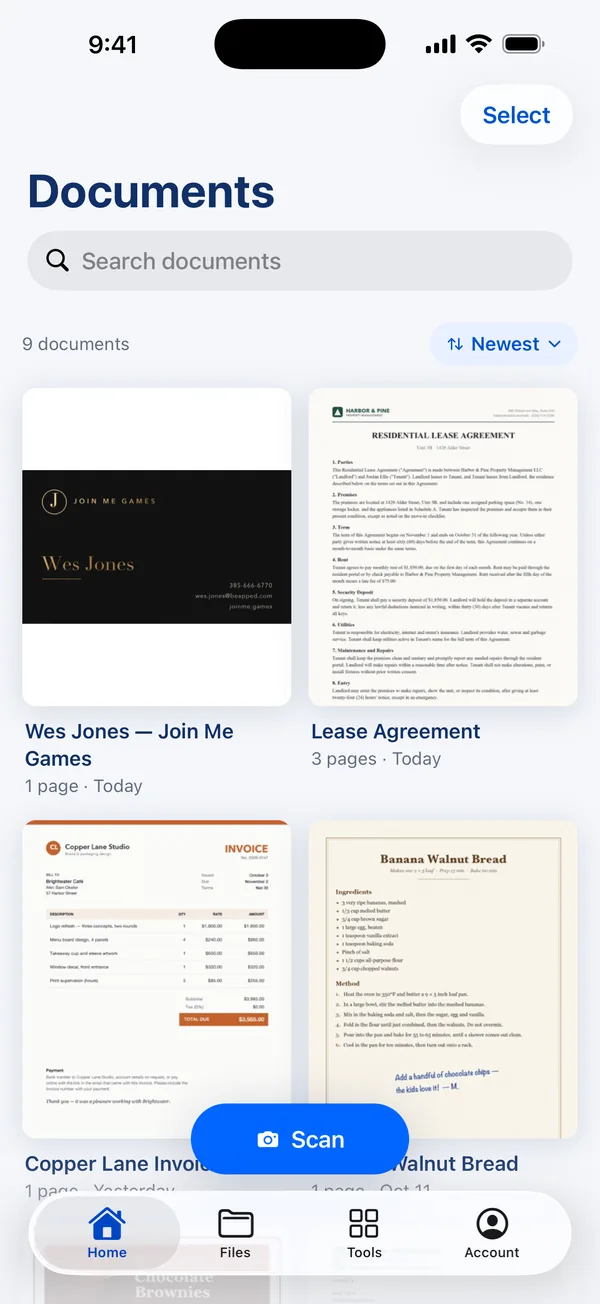
Point your camera at a page. Scan Page finds the edges, straightens the page and captures it automatically — then turns it into a searchable PDF that stays on your device.

How to do it
- Tap Scan. The document camera opens and looks for a page.
- Hold your iPhone over the page. When the edges are found, it captures on its own — or tap the shutter yourself.
- Keep going for a multi-page document, then tap Save.
- Your scan opens as a PDF with its text recognised, ready to search, rename or file into a folder.
Built on the iPhone's own document camera
Scan Page uses the same document camera that is built into iOS, so edge detection, perspective correction and auto-capture behave the way you would expect from Apple. A crooked photo of a page on a table becomes a flat, square page.
Scan as many pages as you like in one pass. A ten-page contract is one document, not ten photos.
Searchable PDFs, recognised on your device
Every page is run through text recognition on your iPhone as it is saved. The PDF gets an invisible text layer, so you can search it, select its words in Files or Mail, and find it later by typing a word that appears on the page.
Nothing is uploaded to do this. The recognition runs on the device, which is also why it works offline.
Tips for a clean scan
Lay the page on a darker surface than the paper — a table, not a white desk — so the edges stand out. Light it evenly and avoid your own shadow falling across it. For a receipt or a thin page, flatten the creases first.
If a page comes out dim or uneven, the greyscale, black & white and enhance filters in Edit pages can clean it up afterwards.
Questions
Is scanning free?
Yes. Scanning is free and unlimited. A Scan Page Pro subscription unlocks opening, exporting and sharing the documents you capture.
Are my scans uploaded anywhere?
No. Documents are stored only on your device. There is no account and no cloud copy kept by us.
Can I scan several pages into one PDF?
Yes. Keep capturing pages before you tap Save and they become one document. You can also merge documents together later.
Get Scan Page
Scanning is free and your documents never leave your device. Scan Page Pro unlocks opening, exporting, signing and sharing what you capture.
More you can do
Photos to PDF
Turn photos already in your library into a PDF, combine several documents into one, and reorder, rotate or clean up pages on your iPhone.
Copy text from a scan
Copy the text from a printed page on your iPhone. Scan Page recognises text on the device, so you can copy, share or search the words on any scan.
Sign documents
Sign a contract or form on your iPhone: scan it, draw your signature with your finger, place it on the line and share the signed PDF.